
Foundational Anatomical Terminology:
Page 5 of 11
Anatomical planes and the Skin tool on the 3D panel
The Skin tool allows you to add or subtract skin, in order to view what is under a skin landmark. For example:
If you are examining the right shoulder and would like to know what muscles are under the skin, you can set the transverse plane to anatomy and the sagittal plane to anatomy, as shown in this example. This isolates what muscular structures are under the skin of the right shoulder.
Try it: Add planes and skin to the 3D Panel:
- Tap on the Reset button (or tap here) to reset the 3D and MPR panels.
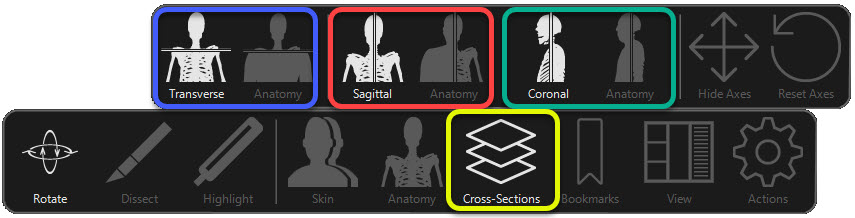
- Tap on the plane tool and select the plane that you wish to add:
- Transverse: Tap on Transverse and then tap on Anatomy.
- Sagittal: Tap on Sagittal and then try the color/anatomy button.
- Coronal: Tap on Coronal and then try the color/anatomy button.
- Note: Tap on the Anatomy/Color button to toggle back and forth between the color view and the skin view.
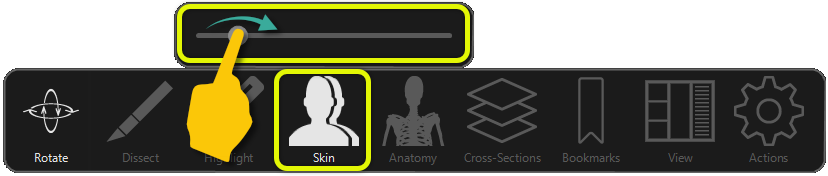
- Tap on the Skin Tool
- Using one finger, move the slider from left to right to add or remove skin to the body.
Tap here for an example: Plane tool and skin tool